Getting Started
In this tutorial you will open IMTerm, connect to an AS/400 session, navigate through a menu, and sign off cleanly. The same steps apply to z/OS (TN3270) and Linux/Unix (VT220) with minor differences noted along the way.
Open IMTerm in your browser
Navigate to the IMTerm URL provided by your administrator (for example https://imterm.company.com). If you are running locally, use http://localhost:8080.
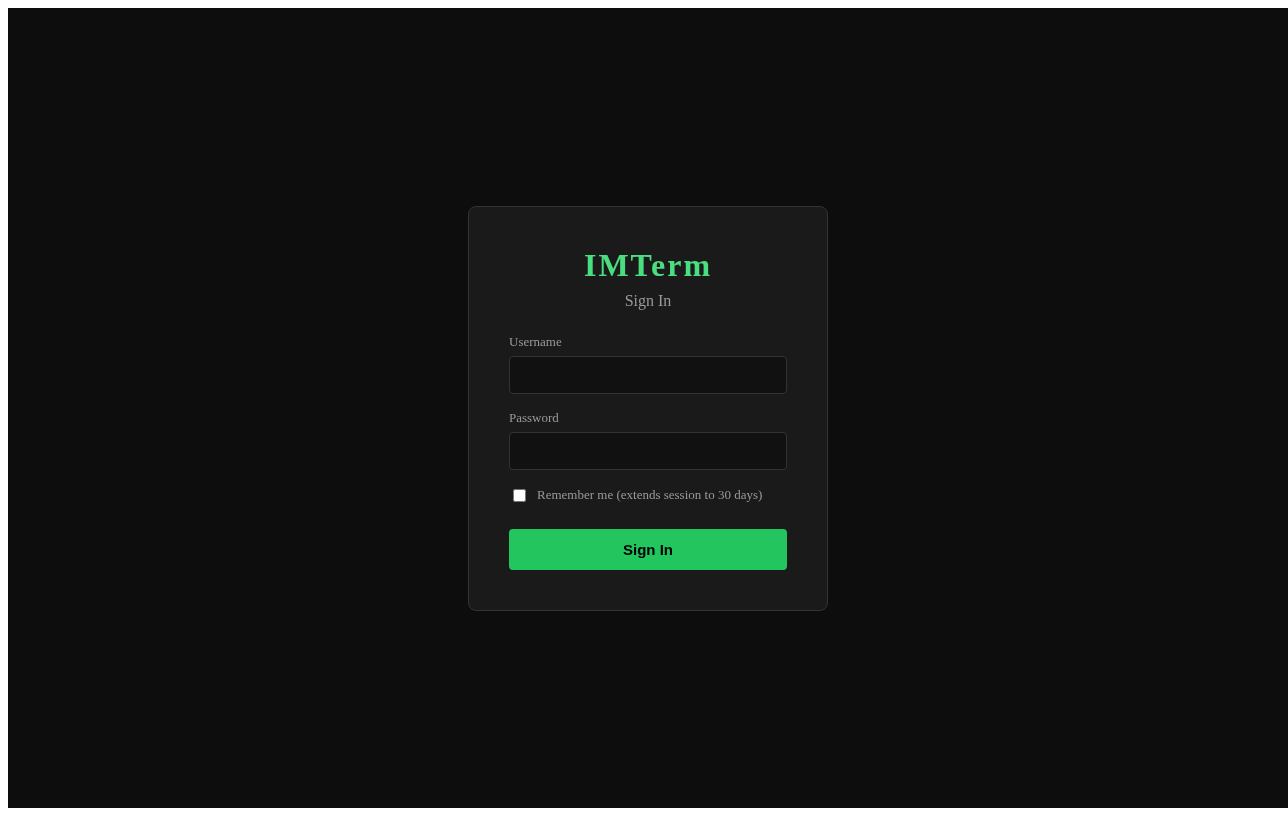
Sign in
Enter the username and password given to you by your administrator, then click Sign In. You can tick Remember me to stay signed in for 30 days.
Open the New Connection dialog
Click File in the menu bar, then New Session, or press Ctrl+N.
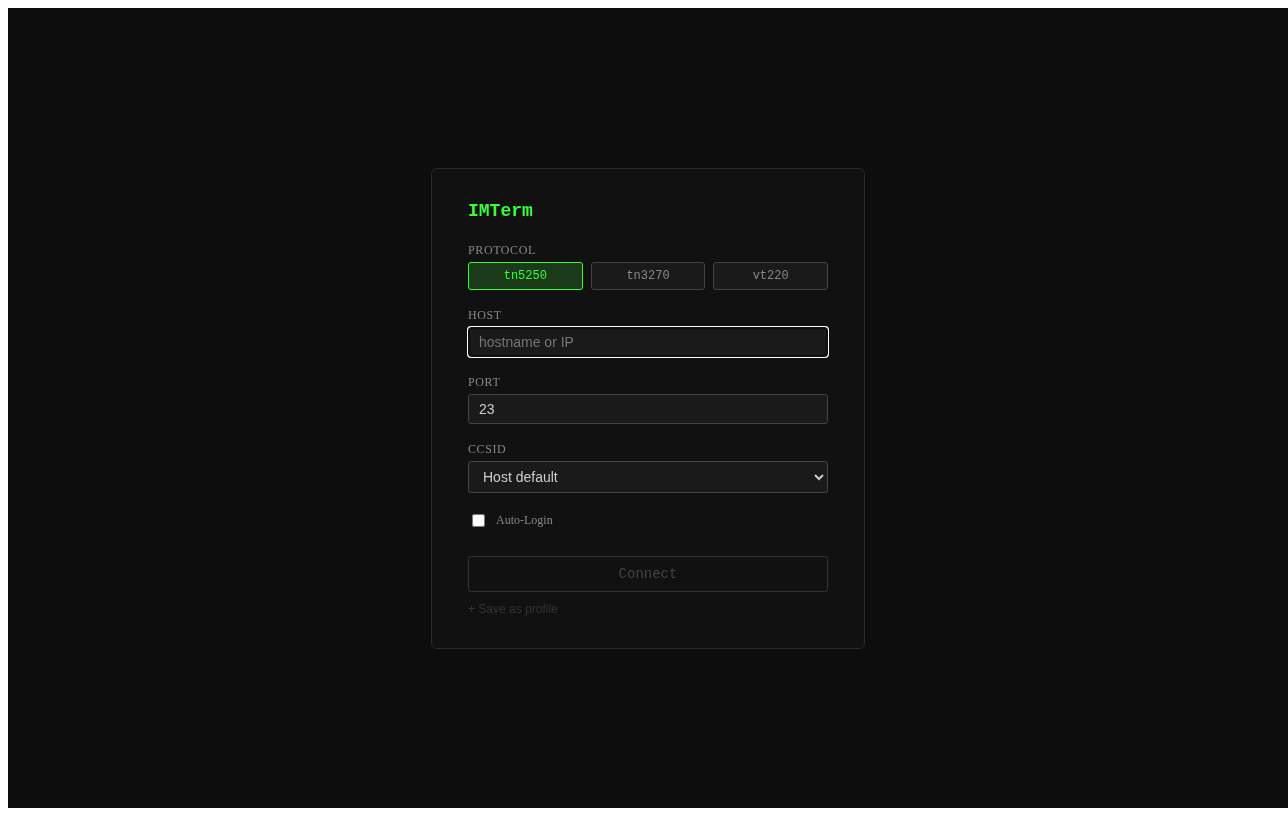
Choose your protocol
Click TN5250 for AS/400 or IBM i, TN3270 for z/OS or TSO, or VT220 for Linux/Unix SSH sessions.
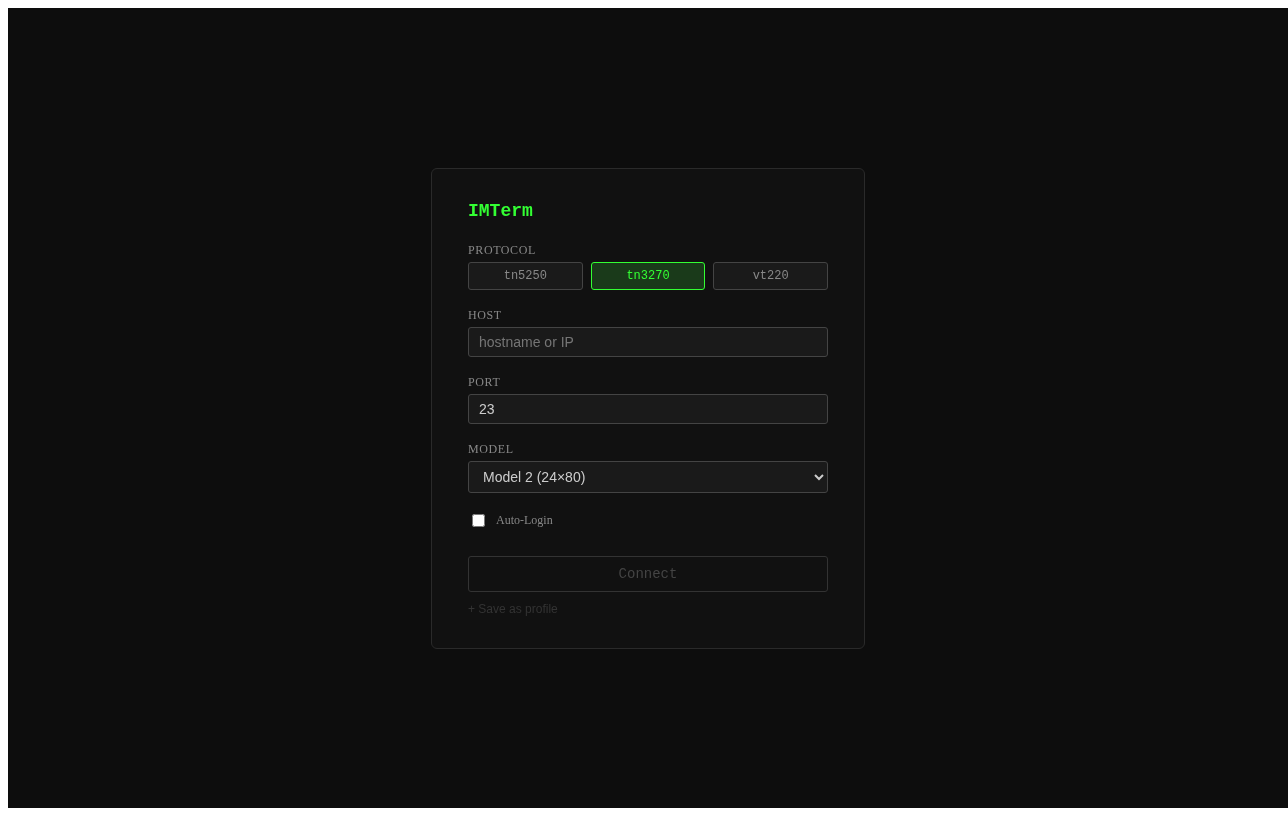
Enter the host and port
Type your server's hostname or IP address in the Host field. Confirm the port number matches your system's configuration. Leave TLS unchecked unless your administrator told you to use encrypted connections.
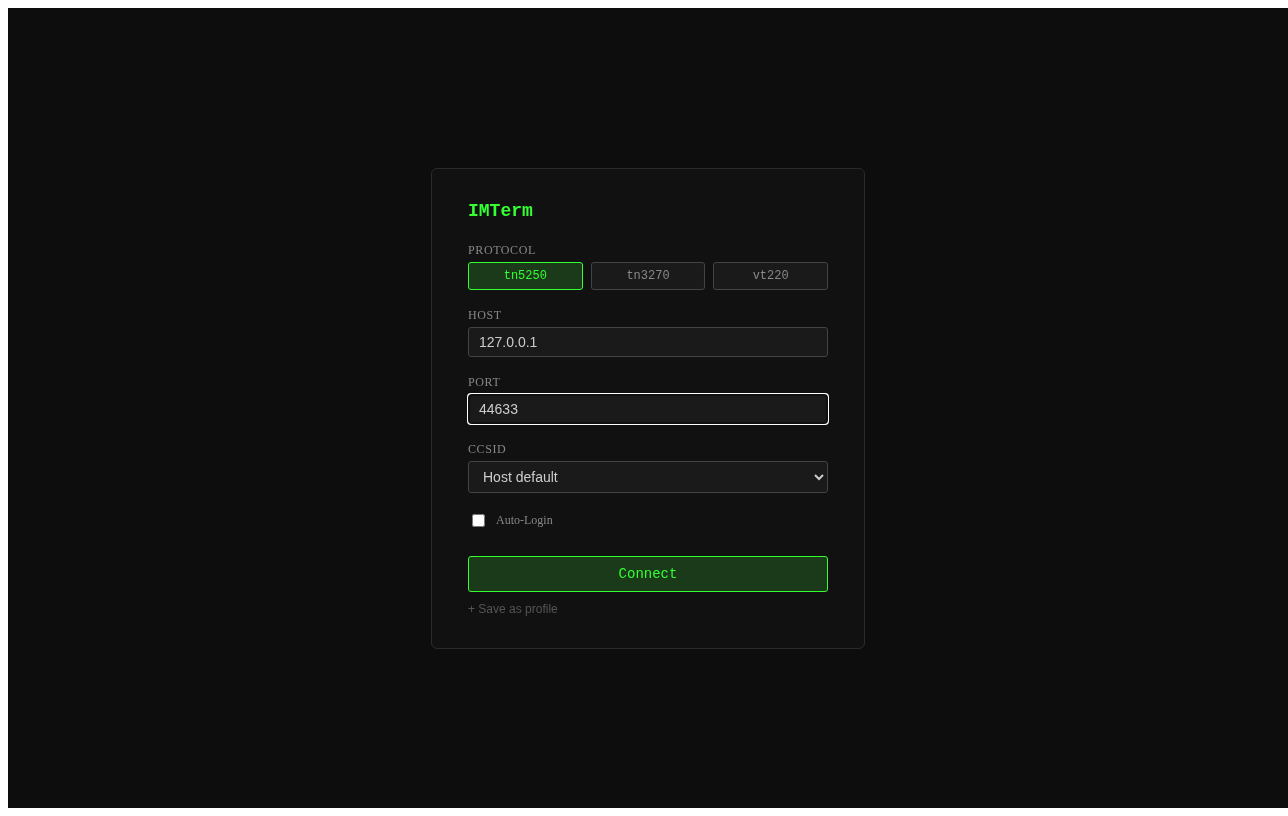
Connect
Click Connect. IMTerm opens a WebSocket connection to the server and begins the TN5250/TN3270/SSH handshake. This normally takes 1-2 seconds.
Sign on to the AS/400
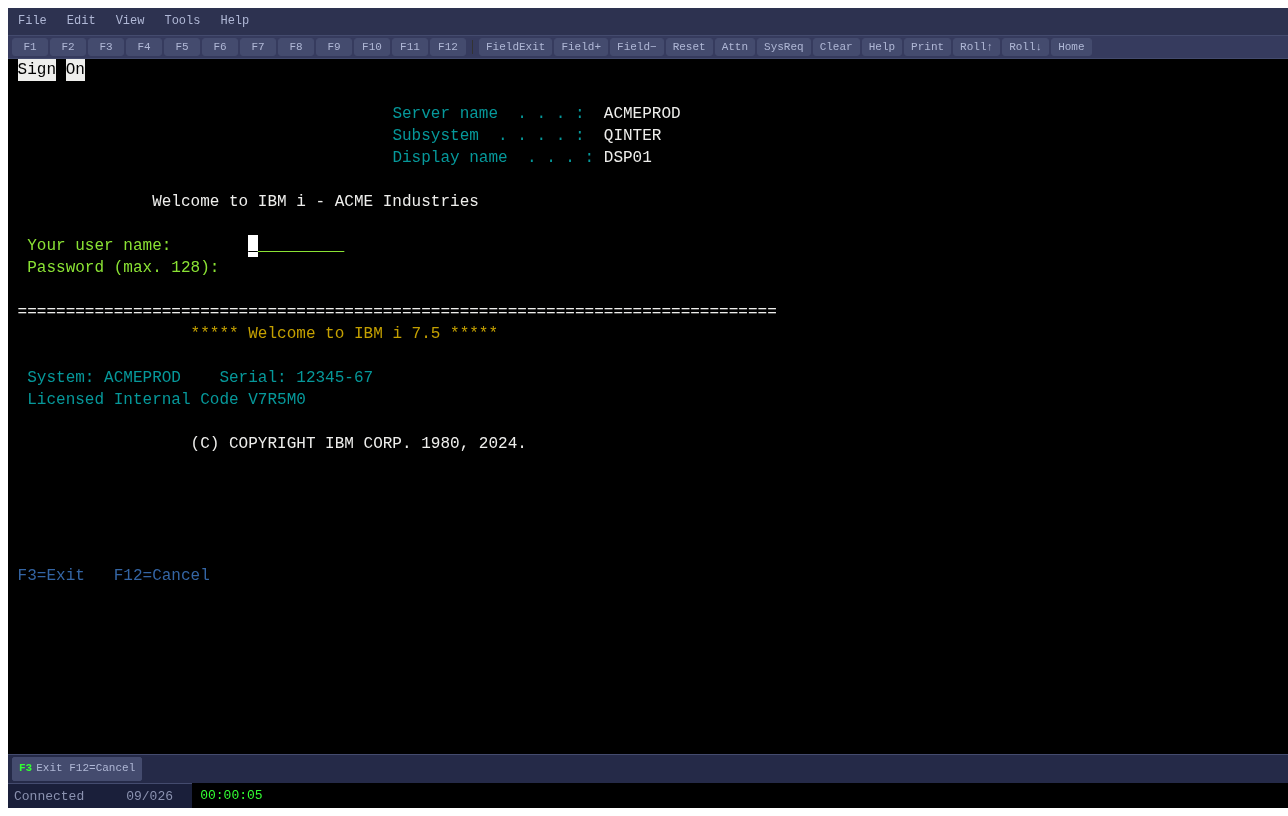
On the AS/400 Sign On screen, type your User name, press Tab to move to the Password field, type your Password, then press Enter.
Navigate to a menu option
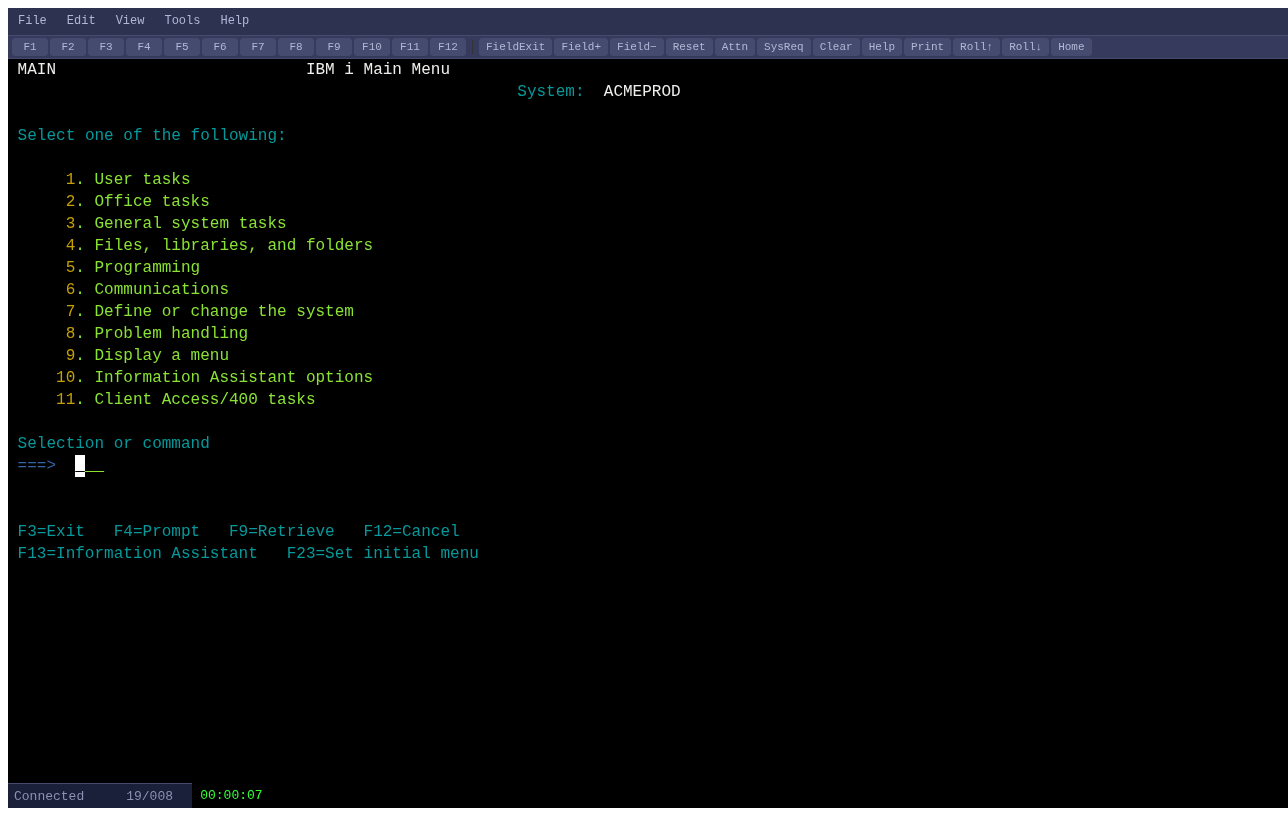
Type the option number in the Selection or command field (the bottom input line on most AS/400 menus) and press Enter. For example, type 1 to open Work with user profiles.
Navigate back
Press F3 to exit the current screen and return to the previous menu. Press F12 to cancel or go one screen back without saving. Most AS/400 screens show available F-keys in the bottom row.
Sign off
From any AS/400 command line, type SIGNOFF and press Enter, or navigate back to the Main Menu and press F3. Then click File > Disconnect in IMTerm to close the session cleanly.