Hebrew and BiDi Setup Guide for IMTerm
IMTerm is the only enterprise terminal emulator with built-in Hebrew and bidirectional text support across all three protocols: TN5250E (AS/400), TN3270E (z/OS), and VT220/SSH. This guide covers everything an Israeli IT team needs to configure Hebrew correctly, test it, and troubleshoot common issues.
Why Hebrew Matters Now
Legacy terminal emulators that provided Hebrew support are increasingly end-of-life, with no further security patches. Organizations still running them are exposed to unpatched vulnerabilities with no migration path.
IMTerm's Hebrew support is built in from the ground up:
- CP424 (Hebrew New EBCDIC) and CP803 (Hebrew Old EBCDIC) for AS/400 TN5250E sessions
- CP424 (Hebrew New) for z/OS TN3270E sessions
- ISO 8859-8 (visual Hebrew) for VT220/SSH sessions with NATPAGE=8
- UTF-8 for modern VT220 sessions with NATPAGE=19
- Unicode TR#9 bidirectional algorithm via bidi-js, applied as a preprocessing stage before rendering
All of this works in any modern browser on Windows, macOS, Linux, or iOS - no special fonts or locales required.
Choosing the Right CCSID
The most common configuration issue with Hebrew terminals is selecting the wrong character set. Here is when to use each option:
CP424 (Hebrew New EBCDIC) - Use for: IBM i 5.4 and later, AS/400 systems running CCSID 424 (the most common Hebrew CCSID) - How to identify: DSPSYSVAL QCCSID on the AS/400 returns 424 - Coverage: all 22 base Hebrew letters plus 5 final forms, plus standard ASCII characters
CP803 (Hebrew Old EBCDIC) - Use for: Legacy AS/400 systems using the old Hebrew code page, pre-IBM i 5.4 - How to identify: DSPSYSVAL QCCSID returns 803 - Coverage: same Hebrew characters but different byte positions than CP424
CP037 (US English EBCDIC) - Use for: AS/400 systems in the US or Europe with no Hebrew content - Hebrew characters will appear as question marks or garbage if sent from a Hebrew program
ISO 8859-8 (NATPAGE=8) - Use for: VT220/SSH sessions running Natural/Adabas or other programs that set NATPAGE=8 - Hebrew bytes are 0xE0-0xFA mapping to Alef through Tav
UTF-8 (NATPAGE=19) - Use for: modern Linux systems and programs that handle Hebrew natively in UTF-8 - No conversion needed - Hebrew passes through unchanged
Configuring a Hebrew AS/400 Connection
When creating a connection profile for a Hebrew AS/400:
- Click "New Connection" in IMTerm
- Set Protocol to TN5250E
- Enter your AS/400 host name and port 23 (or 992 for TLS)
- Set CCSID to CP424 (Hebrew New) - this is correct for most Israeli AS/400 systems
- Set Terminal Type to IBM-3179-2 for 24x80 screens
Save the profile and click Connect.
Testing Hebrew: What to Expect
After connecting to a Hebrew AS/400, navigate to any screen that contains Hebrew text.
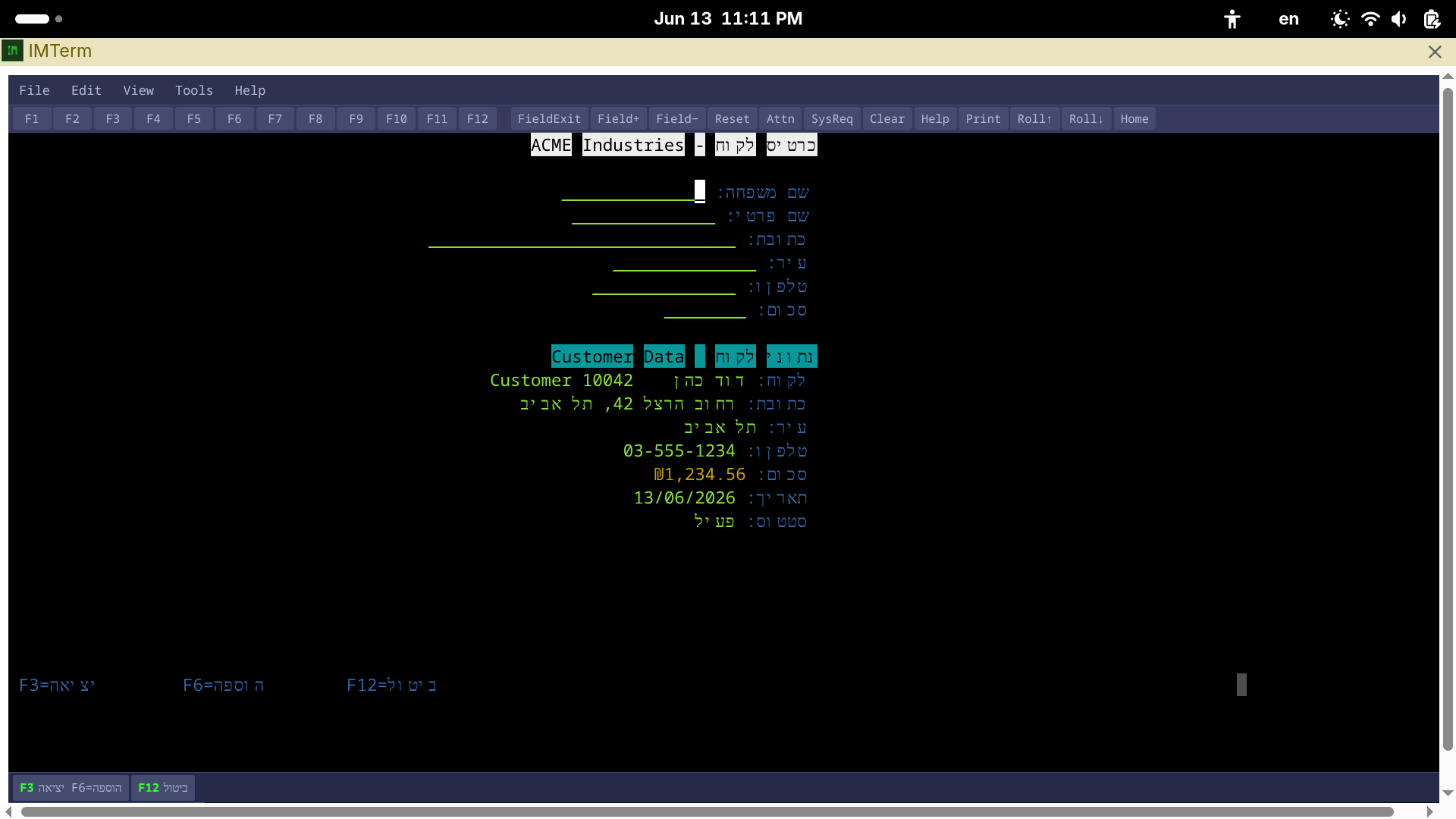
On a correctly configured connection, Hebrew characters appear as readable Hebrew letters - alef, bet, gimel, and so on. The screen layout follows the Hebrew convention of right-to-left primary direction, with the cursor moving right to left in Hebrew input fields.
If you see garbled characters instead of Hebrew, the CCSID is set incorrectly. See the troubleshooting section at the end of this article.
Screen Reverse Toggle
Hebrew AS/400 applications typically display screens in "reverse mode" - the entire screen is treated as right-to-left, with fields and labels anchored to the right side. IMTerm's Screen Reverse feature replicates this behavior.
To toggle screen reverse:
- Menu: View > Screen Reverse
- Keyboard shortcut: Ctrl+Shift+R
When screen reverse is active, the terminal display is mirrored. Fields that were on the right side of a standard (LTR) view now appear on the left, matching what Hebrew users expect. Toggle it off for non-Hebrew screens.
IMTerm remembers the screen reverse preference per connection profile. If your AS/400 always uses Hebrew screens, enable it in the profile settings so it is active automatically on connect.
Copy Right to Left
Hebrew text copied from an AS/400 screen and pasted into a Windows or web application sometimes appears reversed, because clipboard content has a left-to-right byte order even when the visual display is right-to-left.
IMTerm's "Copy Right to Left" feature reverses the byte order when copying, so that Hebrew text pastes correctly into RTL-aware applications (Microsoft Word, Outlook, LibreOffice, etc.).
To use it: select text on the terminal screen, then go to Edit > Copy Right to Left. The clipboard content will be in the correct order for pasting into RTL applications.
Hebrew PF Key Labels
When using Hebrew AS/400 applications, the function key bar at the bottom of the screen typically shows Hebrew labels for each PF key (e.g., PF3=יציאה for Exit). IMTerm renders these labels in Hebrew with correct BiDi alignment.
If the PF key bar shows garbage instead of Hebrew, confirm that Screen Reverse is toggled to match what the AS/400 application expects.
How Bidirectional Rendering Works
IMTerm uses the bidi-js library as a preprocessing stage applied to every screen update before the content is passed to the xterm.js terminal renderer. This is the standard approach for bidirectional text in web terminals, following Unicode Technical Report #9 (the Unicode BiDi algorithm).
Here is what happens on each screen update:
- The TN5250E or TN3270E decoder receives raw EBCDIC bytes and converts them to Unicode using the configured CCSID table (CP424, CP803, etc.).
- Each row of the screen is passed through the bidi-js paragraph algorithm, which identifies Hebrew and Arabic characters and computes the visual display order.
- The reordered characters are sent to xterm.js for rendering in the terminal.
This means that mixed Hebrew/English lines - which are common in AS/400 business applications - are handled correctly. English field labels appear on the right side, Hebrew content appears to their left (in screen-reverse mode), with proper alignment between the two.
Cursor Positioning in BiDi Fields
In Hebrew AS/400 applications, the cursor in an input field moves from right to left as the user types. IMTerm correctly tracks cursor position in logical coordinates (the position within the field data) and visual coordinates (where the cursor appears on screen). These differ in BiDi text.
Practical effect: when you press the right arrow key, the cursor moves right visually, but in a Hebrew field this moves to the previous character logically. This matches the behavior users expect from native 5250 sessions and existing emulators.
Hebrew in Print Output
IMTerm's SCS-to-PDF print pipeline fully supports Hebrew. When the AS/400 sends a Hebrew print job through a TN5250E printer session:
- The SCS (SNA Character Stream) data is received on a dedicated printer session (device type IBM-3812-1).
- The SCS parser converts EBCDIC bytes to Unicode using CP424.
- The PDF generator lays out Hebrew text right-to-left, respecting the BiDi algorithm for mixed lines.
- The resulting PDF is either saved to the print archive, routed to CUPS, or offered as a browser download.
Hebrew print output matches the host application's intent exactly. There is no manual font configuration required - IMTerm embeds Hebrew-capable fonts in the PDF.
Hebrew in VT220 Sessions (Natural/Adabas)
If you are running Natural/Adabas on Linux or Unix over a VT220/SSH connection, Hebrew support depends on the NATPAGE setting in your Natural environment:
NATPAGE=8 (ISO 8859-8, visual Hebrew) - Hebrew letters are in bytes 0xE0-0xFA (Alef=0xE0, Tav=0xFA) - IMTerm decodes these to Unicode Hebrew block (U+05D0-U+05EA) - Use the Natural VT220 keymap preset for correct PF key sequences
NATPAGE=19 (UTF-8) - Hebrew is transmitted as UTF-8 sequences - No conversion needed - IMTerm and xterm.js handle UTF-8 natively - This is the preferred mode for modern Natural environments
Configure the NATPAGE setting in your Natural profile (NATPARM) or session startup:
SET GLOBALS NATPAGE=8
For testing, connect to your Natural session and run a program that displays Hebrew text. The characters should appear correctly.
Hebrew in Modern View (Screen-to-HTML)
When you enable Modern View (View > Modern View or Ctrl+M), IMTerm converts the terminal screen to an HTML form. For Hebrew screens, the analyzer:
- Detects Hebrew content in field values and labels.
- Sets
dir="rtl"on the generated HTML form and individual input fields. - Aligns labels to the right and inputs to the left of each form row.
- Renders subfile columns with right-aligned headers for Hebrew column titles.
The resulting HTML form shows Hebrew text natively in the browser, with all the BiDi rendering handled by the browser's built-in Unicode support. No additional configuration is required for Hebrew in Modern View.
Troubleshooting Hebrew Display Issues
Problem: Garbage characters (question marks, boxes, or Latin letters) instead of Hebrew - Cause: Wrong CCSID in the connection profile - Fix: Open connection profile settings and change CCSID to CP424 (most common) or CP803
Problem: Hebrew letters appear but in the wrong order (text reads backwards) - Cause: Screen Reverse is not enabled, or the application expects the opposite orientation - Fix: Toggle View > Screen Reverse (Ctrl+Shift+R)
Problem: Hebrew letters are missing (empty spaces where letters should be) - Cause: Font fallback issue in the browser, or the terminal emulator is mapping Hebrew bytes to an undefined code point - Fix: In IMTerm settings, set the terminal font to a Hebrew-capable monospace font (Courier New, DejaVu Sans Mono, or Liberation Mono all include Hebrew)
Problem: Mixed Hebrew/English lines have text scrambled
- Cause: BiDi processing is not being applied, or the screen is being rendered without the bidi-js preprocessing stage
- Fix: Check the IMTerm version (imterm --version) - BiDi preprocessing was added in v1.3.x. Older builds do not have it.
Problem: Final Hebrew letter forms are wrong (e.g., Kaf appears instead of final Kaf) - Cause: The AS/400 application is sending the base letter, not the final form - Note: This is an application-level issue, not an IMTerm issue. The correct final form (final Kaf, final Mem, final Nun, final Pe, final Tsadi) must be selected by the host application.
Comparison: IMTerm Hebrew vs Legacy Emulators
Hebrew support in legacy emulators was typically implemented as a localized variant sold separately to Israeli customers. It required specific installer versions and locale settings, and was not available in the standard international release.
IMTerm's Hebrew support is part of the standard product, not an add-on. Every copy of IMTerm - whether on Linux, Windows, or in a Docker container - includes full Hebrew support for all three protocols. There is no separate Hebrew edition and no additional licensing required for Hebrew features.
The practical result: migrating to IMTerm on a Hebrew AS/400 system is straightforward. Set the CCSID to CP424, enable Screen Reverse, and users will see the same Hebrew screens they have always used - now in a browser, with no desktop software to manage.